Choosing a dashboard theme you can still read at night and in sun
What changes between Cardashly's cockpit themes, how the automatic day and night switch works, and the large-digit driving mode, with advice on contrast and glare.
By the Cardashly teamPublished 4 min read
Disclosure: we make Cardashly, a car dashboard app for Android. We point out where it fits and where it does not, and we take no payment for mentioning other products. How we write these guides
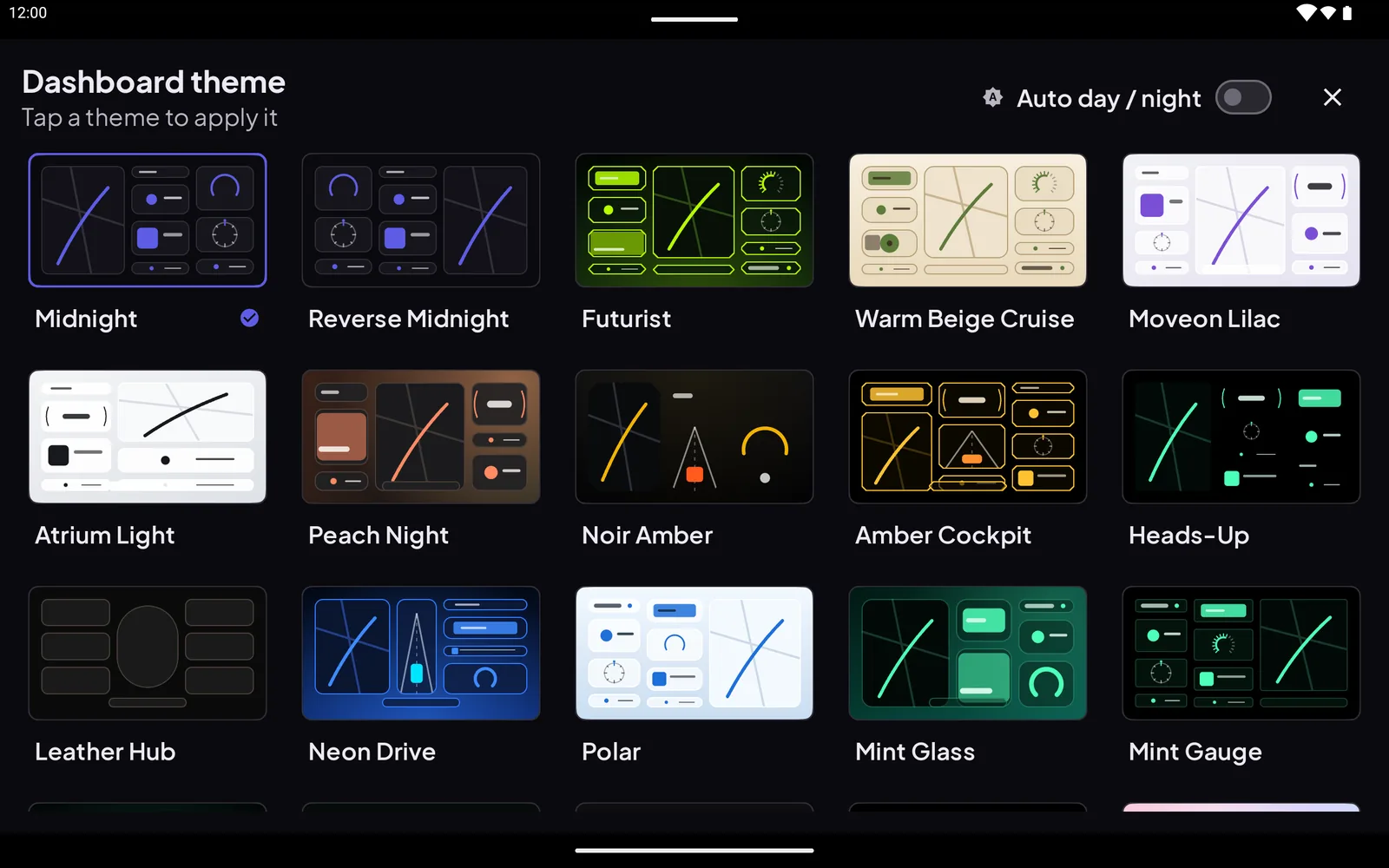
A dashboard is the one screen you look at for a second, many times, in lighting you do not control. A theme that looks great in a screenshot can be unreadable at noon, or dazzling at midnight. This is a practical look at how Cardashly's themes differ and how to pick one. Only part of the set is free; the full range of themes is a Premium feature.
A theme changes more than the colour
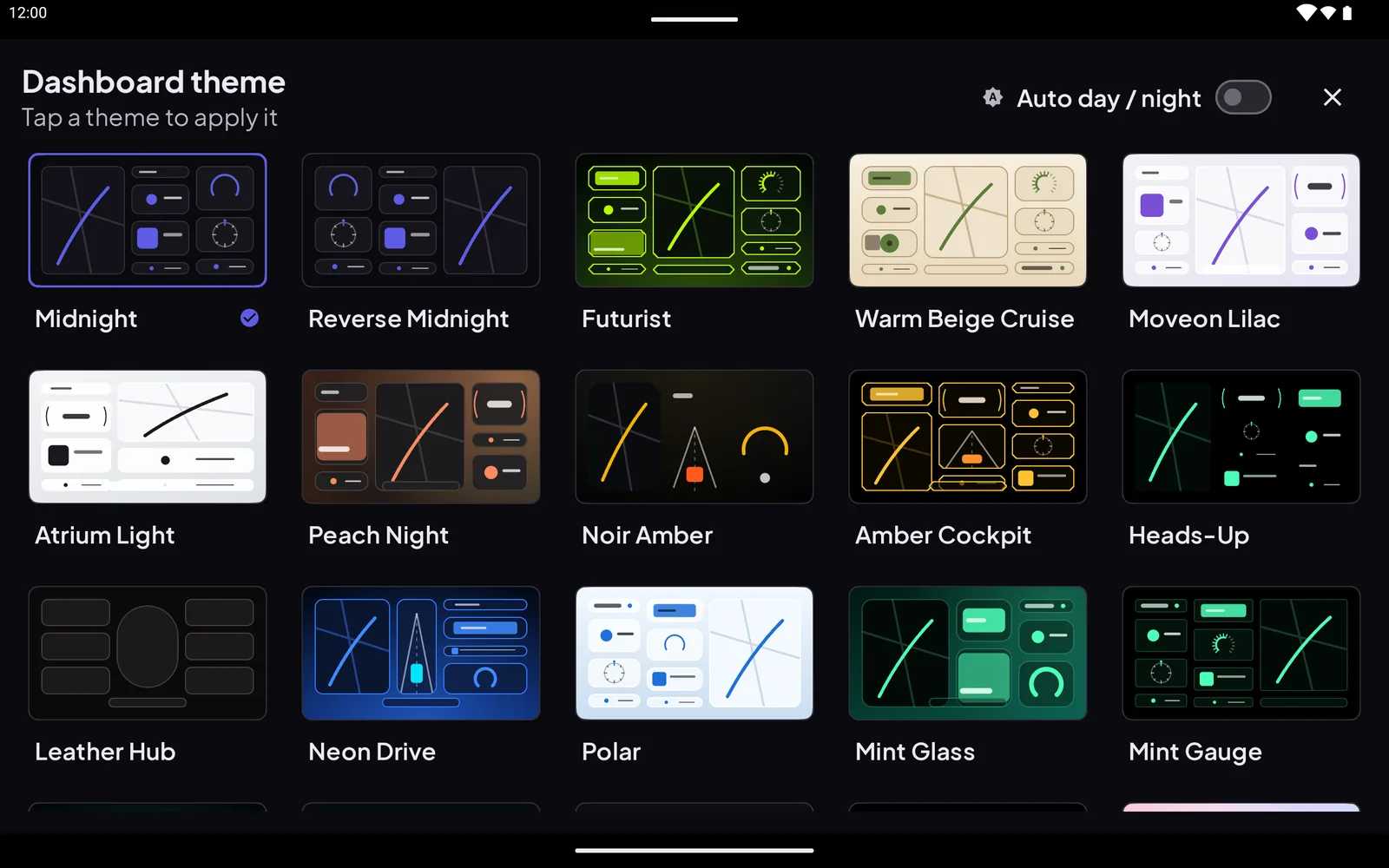
In the theme picker each tile is a small drawing of the layout, not just a colour swatch. That is deliberate: some themes move the gauges, change how big the map is, or put the speed in a different place. Names in the picker include Midnight, Reverse Midnight, Futurist, Warm Beige Cruise, Moveon Lilac, Atrium Light, Peach Night, Noir Amber, Amber Cockpit, Heads-Up, Leather Hub, Neon Drive, Polar, Mint Glass and Mint Gauge, with more below the fold.
Rather than ranking them by taste, it helps to sort them by what they are good at.
Dark themes for night
Midnight, Noir Amber and the other dark layouts keep the bright area small. Dark backgrounds reduce glare on the windscreen at night and are less tiring for your eyes after your pupils have adjusted. Amber and warm tones are a common choice for night because they are gentler than white or cyan, though how much that matters varies from person to person.
Light themes for sun
Atrium Light and Polar use a light background. In bright direct sun a light screen is often easier to read than a dark one, because a dark screen turns into a mirror for the sky. If your mount is in a sunny spot, a light theme during the day is worth trying.
Let the app switch for you
The picker has an Auto day / night toggle in its top corner. Turned on, the app changes between a day and a night look instead of staying on one theme. If you have ever adjusted a theme at the first red light after sunset, this is the setting for you. It also means you can stop touching the screen while driving, which is the main point.
Large-digit driving mode
In the settings there is an option called Adaptive Driving Focus. Its description reads: collapse to 3 glanceable cards with large digits while driving. When on, the busy home layout simplifies once you are moving, so the numbers you actually need get bigger. The idea is the same as the advice in our guide to driving safely with a phone dashboard: fewer elements, bigger type, less time with your eyes off the road.
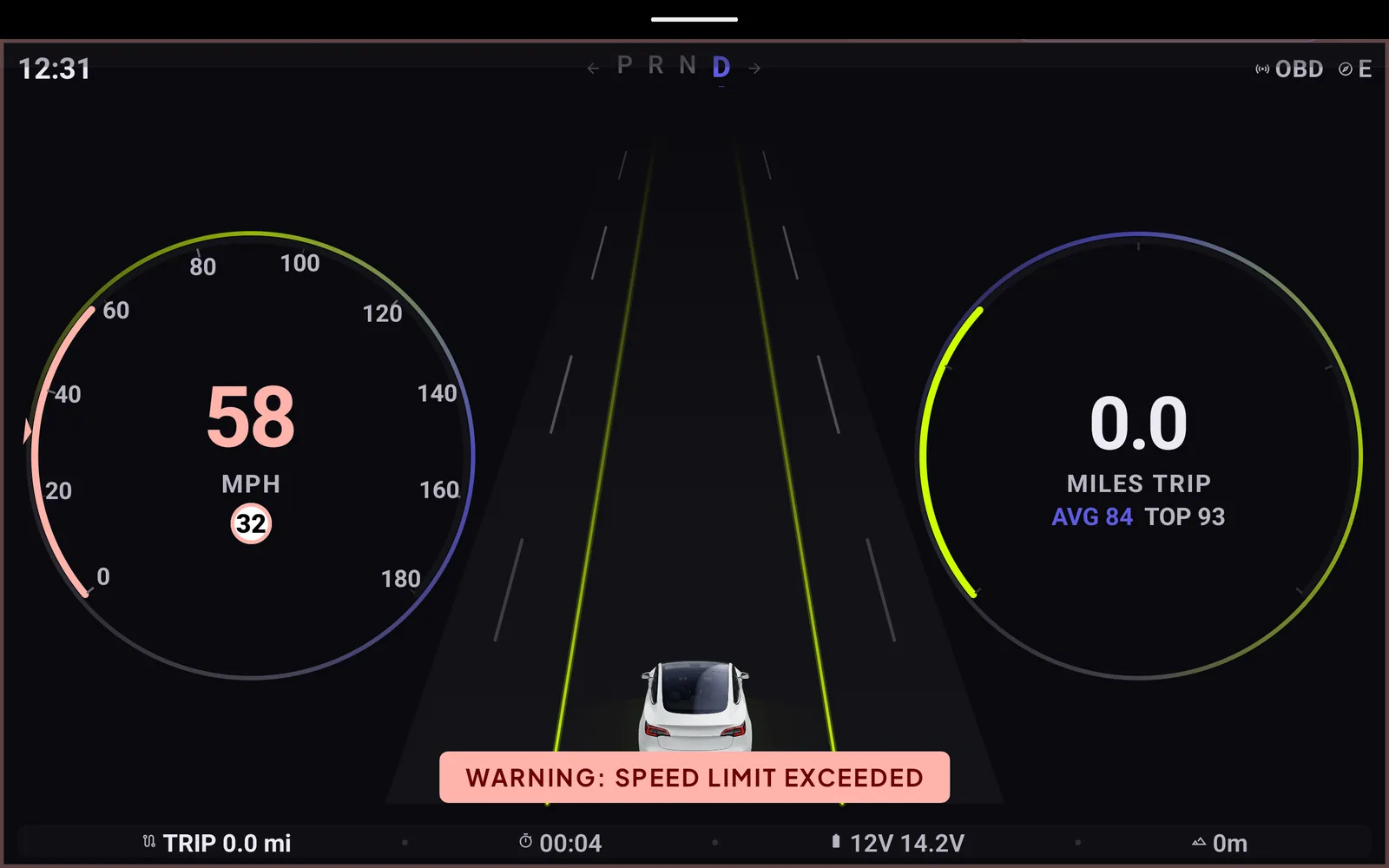
The cluster view above is another example of the same approach: two large gauges, a lane view and a single text warning. The settings also include a speed-limit alert you can turn off, a choice of gauge style, HUD colours and a metric or imperial toggle for the units.
How to pick, in five minutes
- Mount first, then choose. Glare depends on where the screen sits. Try themes with the phone or tablet in its real position.
- Test at the worst time of day. Check one theme at midday and one after dark. If you cannot read the speed in under a second, change it.
- Turn the screen brightness down at night. The theme helps, but brightness does more. Use your phone's own brightness setting or its auto-brightness.
- Prefer fewer elements. If a layout feels busy when parked, it will feel worse at speed.
- Set it, then leave it. Do the choosing while parked. Changing themes while driving defeats the purpose.
If you want the screen to behave as a mirrored reflection on the windscreen, the HUD mode is covered in using your phone as a speedometer.
Frequently asked questions
- Does Cardashly switch themes automatically between day and night?
- There is an Auto day / night toggle in the theme picker. When on, the app changes between a day and a night look.
- Which theme is best in bright sunlight?
- Light themes such as Atrium Light or Polar are worth trying in direct sun, because a dark screen can reflect the sky. It depends on your mount position, so test it in the car.
- What does Adaptive Driving Focus do?
- While you are driving it collapses the layout to three glanceable cards with large digits, so the key numbers are easier to read at a glance.
Turn your phone into the cockpit
Cardashly puts a big glanceable speedometer, maps, music and one-tap calling on one dark, landscape screen, in any car. Free on Google Play.