How to turn your phone into a car dashboard
A step-by-step setup: choosing and placing a mount, keeping the phone powered and cool, and setting up a dashboard app before you drive.
By the Cardashly teamPublished 4 min read
Disclosure: we make Cardashly, a car dashboard app for Android. We point out where it fits and where it does not, and we take no payment for mentioning other products. How we write these guides
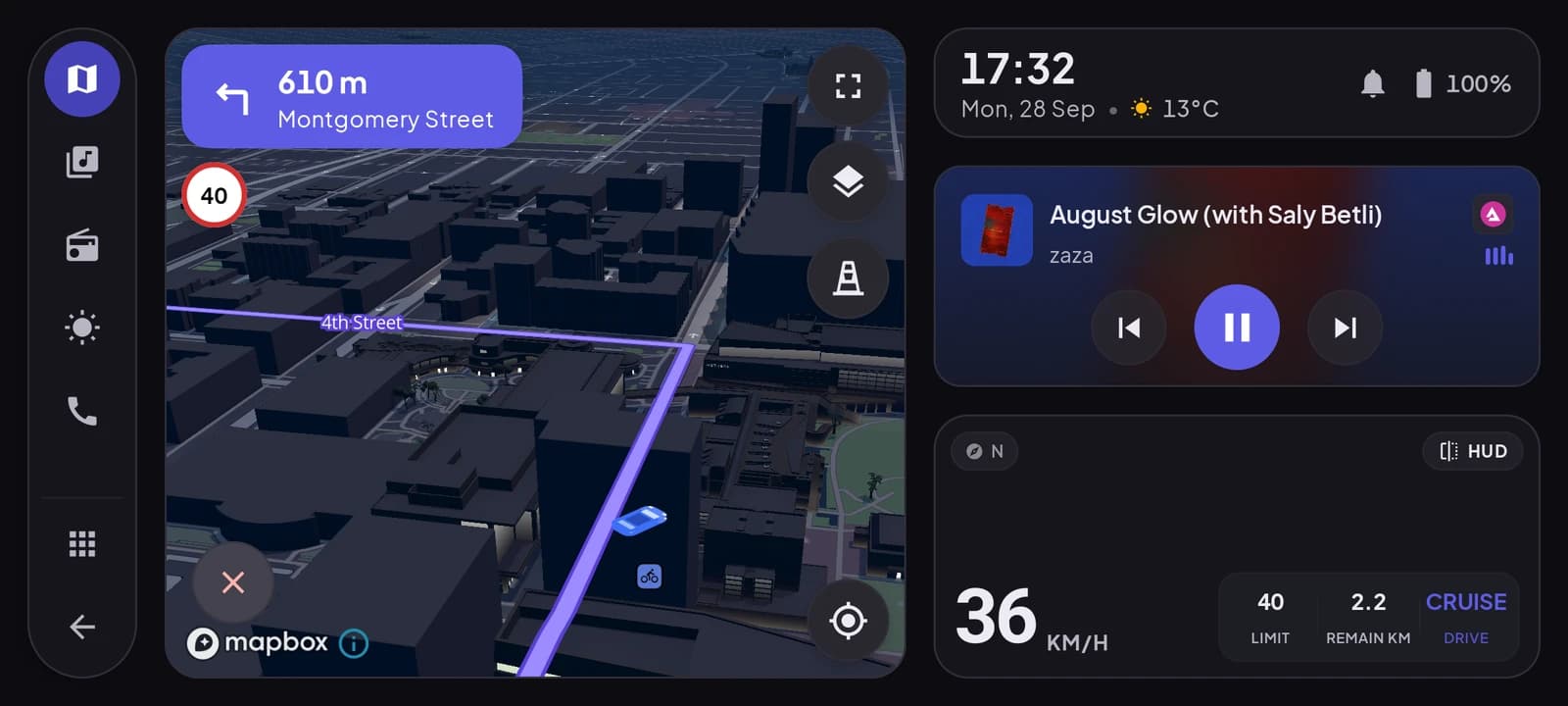
To turn your phone into a car dashboard, fix it in a steady mount low in the center of the dash, plug it into a charger, and run an app that shows speed, maps, music and calls on one screen in landscape. The hardware costs the price of a good mount. The rest is about placement and a few minutes of setup before your first drive.
What you need
- A mount that does not move. This is the part people underspend on. A phone that shakes over every bump is hard to read and tiring to look at.
- A charger and cable. With the screen always on and GPS running, a phone drains quickly. Plugged in, it keeps up.
- A dashboard app. Something built to be read at a glance: large type, dark colors, landscape layout. A normal home screen is not.
Any Android phone from the last few years is enough. An old phone that lives in the car works well, as long as its battery can still cope with heat.
Step 1: choose a mount
| Mount type | Good at | Watch out for |
|---|---|---|
| Dash pad (adhesive) | Very steady, sits low | Semi-permanent, hard to move |
| Vent clip | Cheap, easy, low | Can sag with heavy phones; blocks a vent |
| Windshield suction | Adjustable, strong | Tempting to place too high, in your view |
| CD-slot | Central and steady | Only if your car has one |
For a dashboard you want steady first, low second. A firm dash pad or CD-slot mount usually beats a windshield mount on an arm.
Step 2: put it in the right place
Where the phone sits decides whether this is safe or a distraction.
- Low and central, near the top of the center console. A glance should move your eyes, not your head.
- Landscape, tilted slightly toward you to cut glare.
- Never in front of the road, your mirrors, or an airbag panel. Airbag covers are usually marked "SRS" or "Airbag".
- Within easy reach, so a single tap does not mean leaning.
Local laws differ on where a phone may go, especially on the windshield. Check yours before you commit to a spot.
Step 3: power and cable
Run the cable from a 12 V or USB port along the edge of the dash so it cannot catch on the gear lever, your knee, or the pedals. A 20 W or faster car charger keeps a phone topped up even with navigation and the screen on. A weak port can lose the race on a long drive.
Step 4: manage heat
A phone on a dashboard gets hot from three directions: the screen, the GPS and the sun through the glass. When it overheats, Android dims the screen and slows down, and eventually charging pauses.
- Keep it out of direct sun where you can.
- A vent mount on the cold air side helps in summer.
- Lower the brightness on bright days rather than maxing it out.
- Do not leave the phone on the dash in a parked car in summer.
Step 5: set up the app while parked
Do this once, in the driveway:
- Pick your units (mph or km/h, °C or °F).
- Choose the dark theme for night driving.
- Save your common destinations and favorite radio stations.
- Grant location permission, and check the screen stays on while the app is open.
In Cardashly the dashboard keeps the screen awake while it is open, speed and a map share one landscape screen, and music, radio and calls are one tap from the side dock.
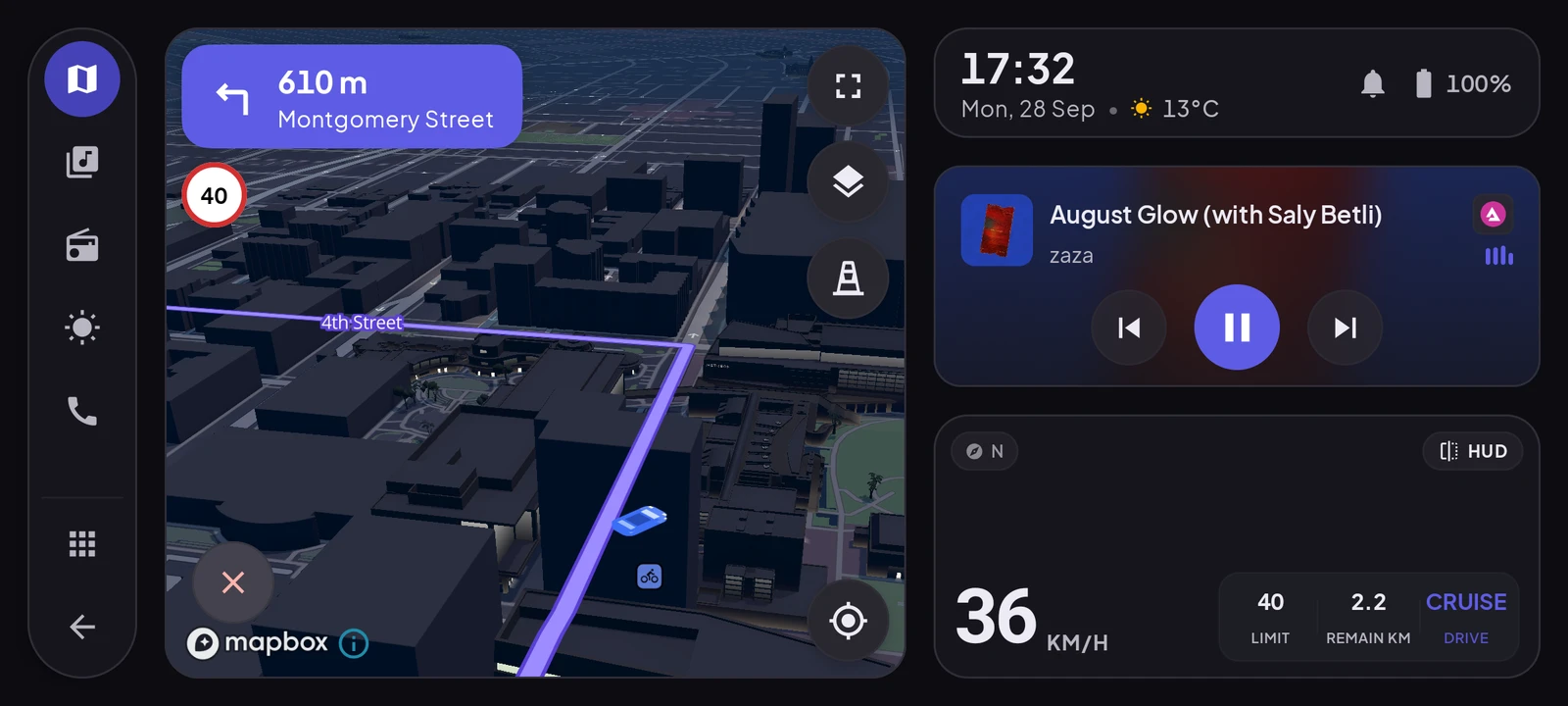
Step 6: a test drive
Before relying on it, take a short loop around the block and check four things: the mount holds over bumps, the phone is charging, you can read the speed without leaning, and nothing reflects in the windshield at night.
Common mistakes
- Mounting high on the windshield. It feels natural but it sits in your view of the road.
- Running on battery. The phone will die mid-trip and get hot doing it.
- Browsing while moving. Choose the route and music before you pull off. If you need something new, pull over.
For the safety side in more depth, read our guide to driving safely with your phone as a dashboard. If you want to know how the speed number itself works, see how to use your phone as a speedometer.
Turn your phone into the cockpit
Cardashly puts a big glanceable speedometer, maps, music and one-tap calling on one dark, landscape screen, in any car. Coming soon on Google Play.
One email the day it lands on Google Play. No spam.